Internet Explorer Update (Continued)
Once you've selected a version of Internet Explorer to download, you will be prompted to validate your version of Windows.
You'll see a banner on the page that looks similar to this:

Click the  button.
You may be prompted to have your version of Windows validated by Microsoft. If this occurs, follow the prompts provided and when asked if you would like to Save the Verification program or Run it from its current location, click on "Run".
After the validation process is complete, you are ready to download the browser.
Once the download page has loaded, click on the  button.
After you click the button, the following window will pop-up.
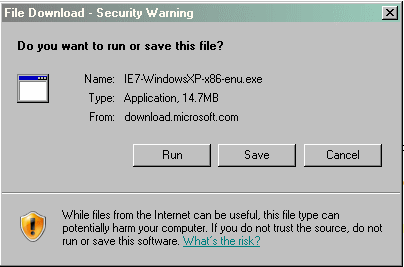
Click the  button.
The installation program will begin downloading, and prepare to run.
Once the program is ready to run, the following window will appear.
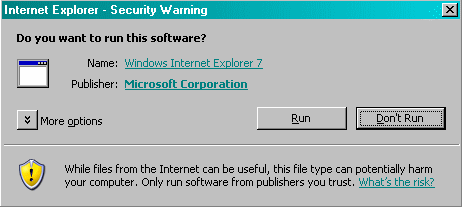
Click the button.
This will start the Internet Explorer installation program and bring up the introductory splash screen.
Click the  button.
The EULA (End User License Agreement) will appear.
Click the  button to continue the installation process.
The installation program will then verify that you have a legitimate copy of the Windows Operating System.
Click the  button to begin this process.
Once the validation is complete, the program is ready to install.
Click the button to continue.
Depending on the speed of your computer, this process could take a few minutes.
If an older version of the browser had to be removed, you will need to restart your computer.
The installation program will inform you of this, and you should close any open programs and click the  button.
At this point, the installation program will assume control of your computer. When your computer has rebooted, you may see a screen that looks like this:
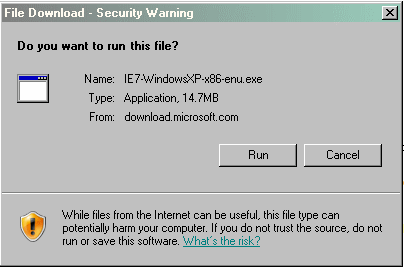
If you do, click the button.
Internet Explorer will then be installed on your computer.
The program may reboot the system another time. Don't worry. This is normal.
Once the system has rebooted, you will be ready to use the latest version of Internet Explorer.