Installing Java (continued)
You are now ready to download the Java installation program.
The download page will contain a list of required and optional files. The only file you need to download is the Windows Offline Installation file. Click on the link for jre-6u7-windows-i586-p.exe to start your download.

Once you click the link, a window similar to the one below will pop up.
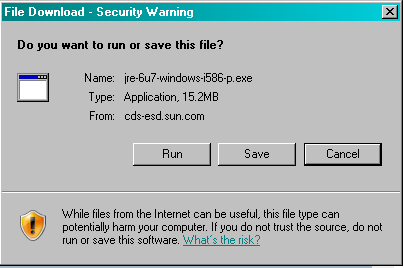
Click on
 button.
At this point, the file download process will begin. This may take some time, depending on the speed of your Internet connection. Once the download has completed, a window similar to the one below will pop up.
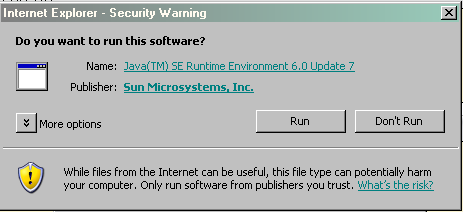
Click on
button. This will start the installation process. At this point, you will need to close your web browser so that the software installation can begin.Once the installation begins, you will see a screen similar to the one below.
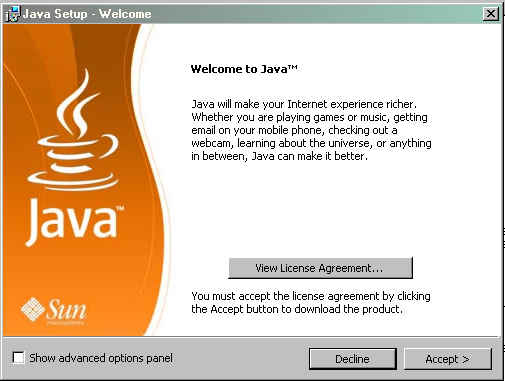
Click the
 button to continue. This will begin the Java setup process. Depending on the speed of your computer, this process may take several minutes.
Once it is done, you will see a screen which states that you have successfully installed Java.
Click the
 button to finish.