Installing the Adobe Flash Player - Step-by-Step Instructions
Adobe Flash Player is a browser plug-in that should be installed on your computer if you are taking online courses. The Flash Player enables you to see animations, hear MP3 audio files, and watch short movies within your online course.
| To begin the installation, click here to go to the Adobe Flash Player Download page. | |
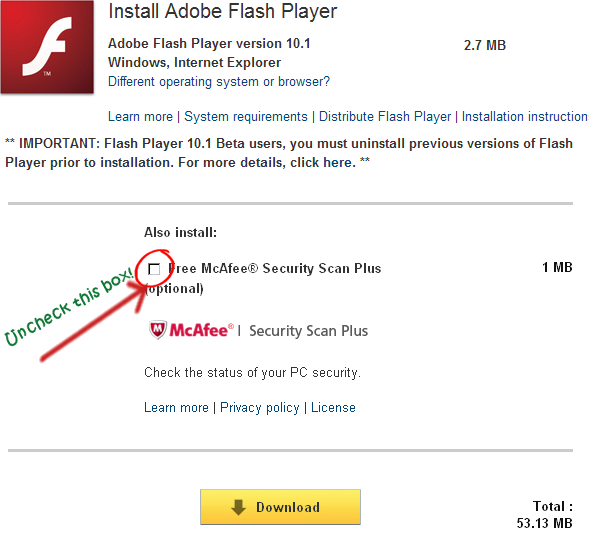
| Once the page
loads, it will look something like the image to the right. Where you see "Also install: Free McAfee Security Scan Plus", make sure the box is UNCHECKED. The McAfee software is a not necessary component of the Adobe Reader, and could interfere with your current security con. figuration. To begin the download process, click the  button. button. |
 |
| If your browser displays a warning similar to this: |  |
| Click on the warning bar and then click "Install
ActiveX Control" |
 |
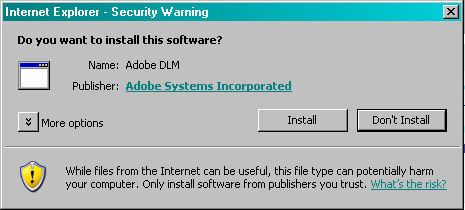
This will install the Adobe Download Manager which is
required to download and install the Adobe Flash Player software.
Click the  button to install the Adobe Download Manager software.
 |
 |
| Once the Adobe Download Manager is installed, the Adobe Flash Player download will begin. Depending on the speed of your computer and Internet connection, this process could take several minutes, so please be patient. | 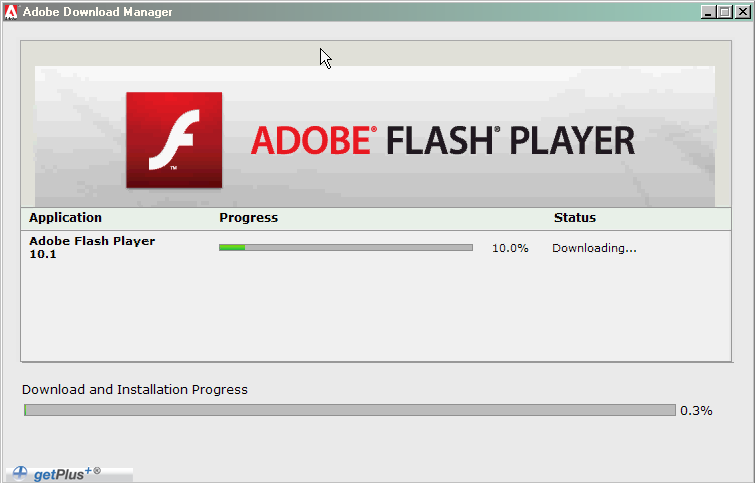 |
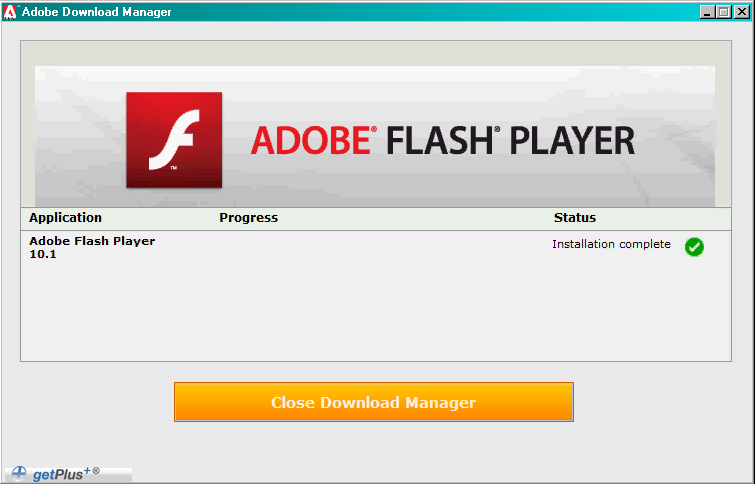
Once the download has completed, the installation process will begin. The process will require no input on your part, so just relax and wait for the installation to be completed. Once the installation has been completed, the download manager will display "Installation Completed" in the "Status" column. Click the "Close Download Manager" button to complete the process. |
 |