Submitting Assignments to a Drop Box
Ok,
your professor has given you a paper or assignment to write and submit,
and they are telling you they want it turned into the Drop Box. This is
a simple tool to use and keeps track of your submitted work. If you are
able to send email with attachments, you will have no problem with
this. Within the Lessons tab, navigate to the
assignment Drop Box given to you by your Professor. The drop box will
look similar to this: 
| Once you click on the drop-box link, you'll see a set of instructions followed by a place where you are to submit your assignment | 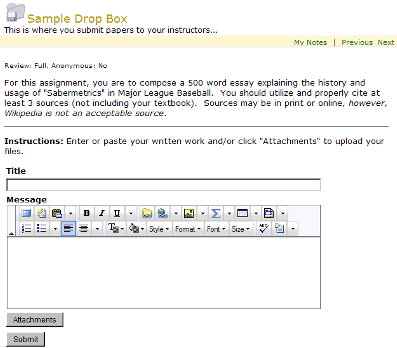
|
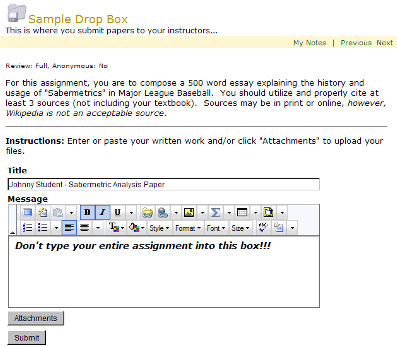
| Enter the title in the Title
field. Although not required, it is recommended that you include your
name in this field. In the Message
field, you can type any message you may wish to send to your instructor
along with your paper. DO NOT TYPE YOUR ENTIRE ASSIGNMENT
INTO THIS BOX!!! Please Note: Your instructor may have disabled the Message field, so if you do not see a Message field, don't panic! |
|
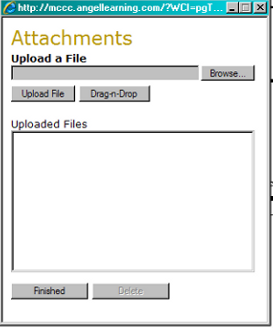
To attach your file to your
submission, click on the  button. This will load up the Attachments
upload form.
button. This will load up the Attachments
upload form. |
|
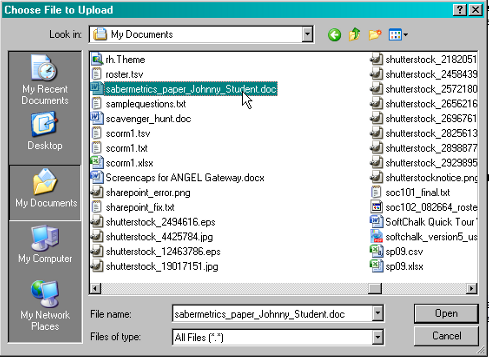
Click on the  button to load the File
Upload
dialog box. Navigate through your computer to select the file which you
wish to upload. It's a good idea to uses a descriptive file name which
includes your name and the title or topic of the assignment. Once
you've selected the file you wish to upload, click the button to load the File
Upload
dialog box. Navigate through your computer to select the file which you
wish to upload. It's a good idea to uses a descriptive file name which
includes your name and the title or topic of the assignment. Once
you've selected the file you wish to upload, click the  button. button. |
 |
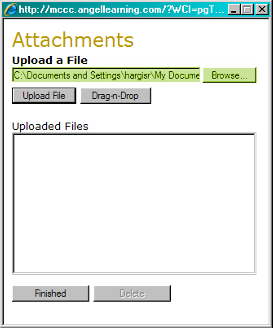
After you've selected the file,
you'll see the Attachments
form again. You'll notice that the filename textbox is now populated
(see highlighted area of the image to the right). At this point, click
the  button to upload
your file. button to upload
your file. |
 |
Your file will then be uplaoded to
your course. Depending on the size
of the file and the speed of your Internet connection, this could take
a few seconds or a few minutes. Once the file has been uploaded, you'll
see it listed in the Uploaded Files field of the Attachments
form. Click the  button to continue.
 |
 |
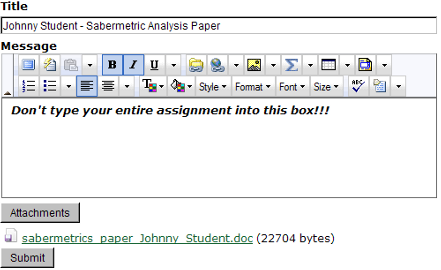
Once your file has been uploaded,
you're now ready to submit your
assignment. If your file has been uploaded correctly, you'll see that
the name of your file is listed beneath the button. To finish,
simply click the  button.
 |
 |
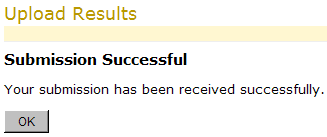
After you've clicked the button, you'll see a screen
similar to the one to the right. Click the  button. button. |
 |
| The drop-box page will then reload and if you scroll down to the bottom of the page, you'll see your submission is there with a date/time stamp. And that's it! You can now go outside and play. |  |